#
5. Designing Certificate
The Credential Cloud platform has it's own design studio for designing the dynamic certificate. The design studio also has an native integration with canva so that the users can take advantage of the templates, benifits and design ease of canva.
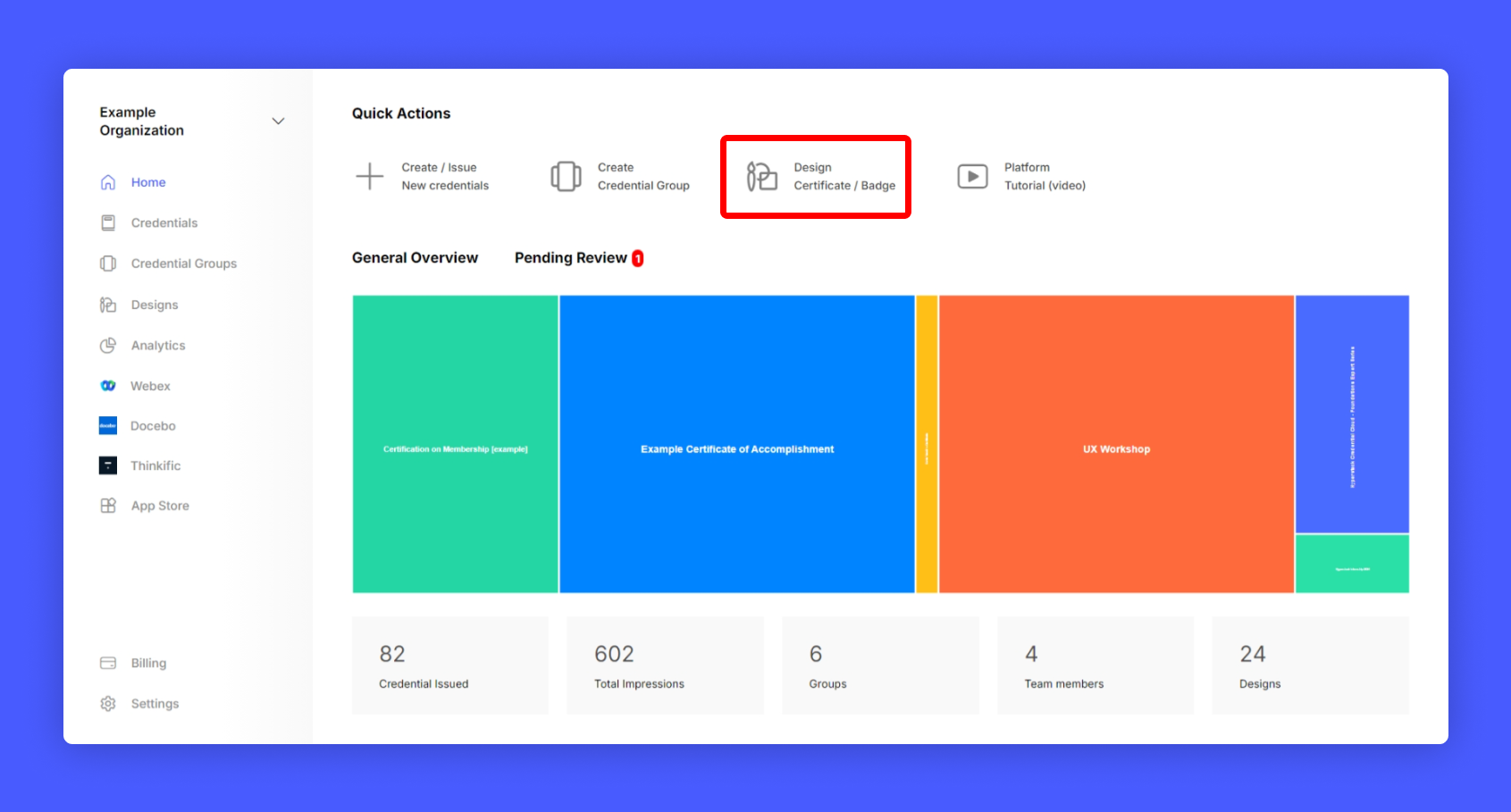
Step 1: Click Design Certificate/Badge from your issuer account home page and select Certificate.
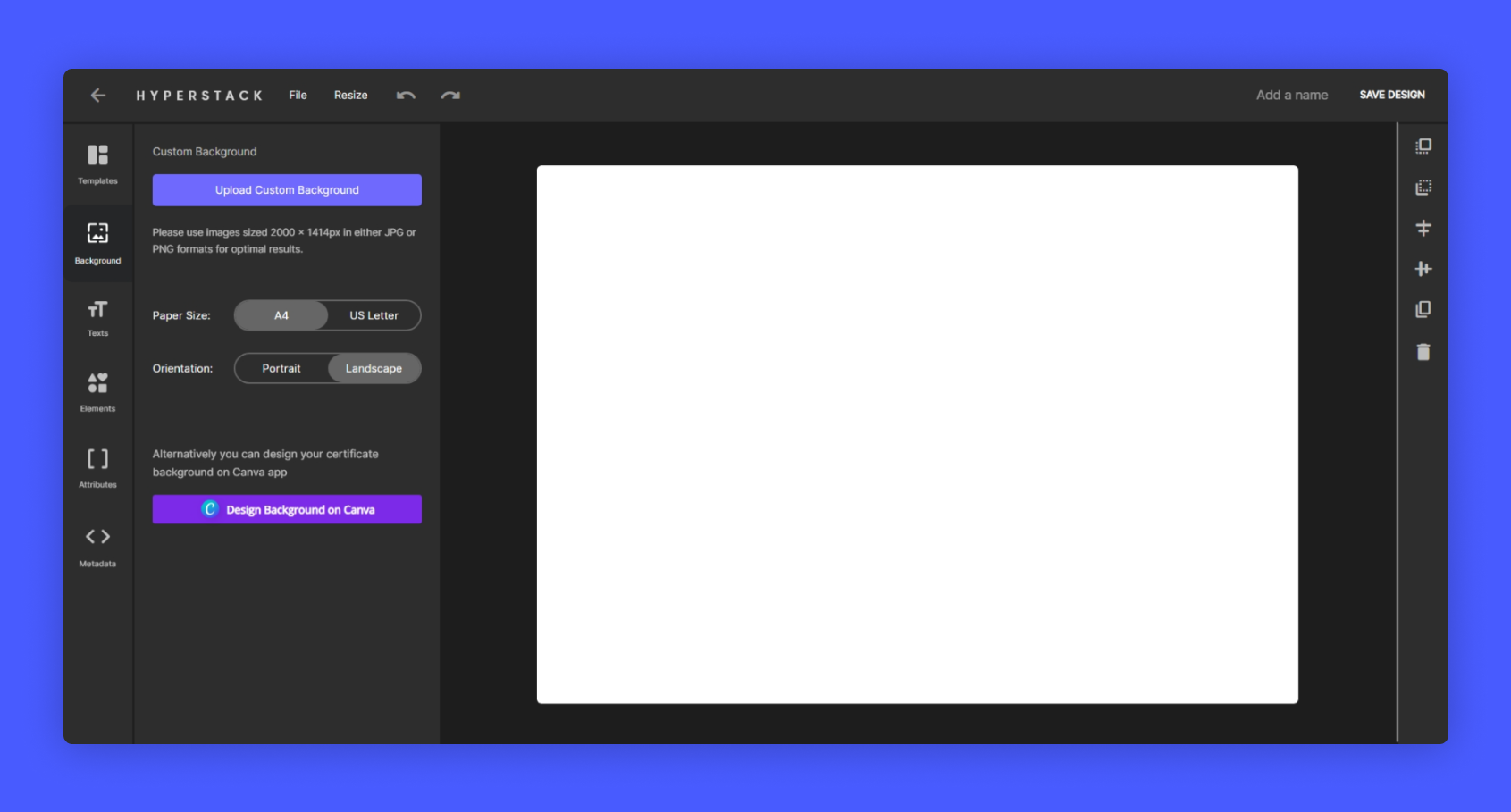
A New Blank design canvas will be opened for certificate creation which looks like below
#
Let's learn some basics:
Let's learn some basics of designing certificate in the design studio,
#
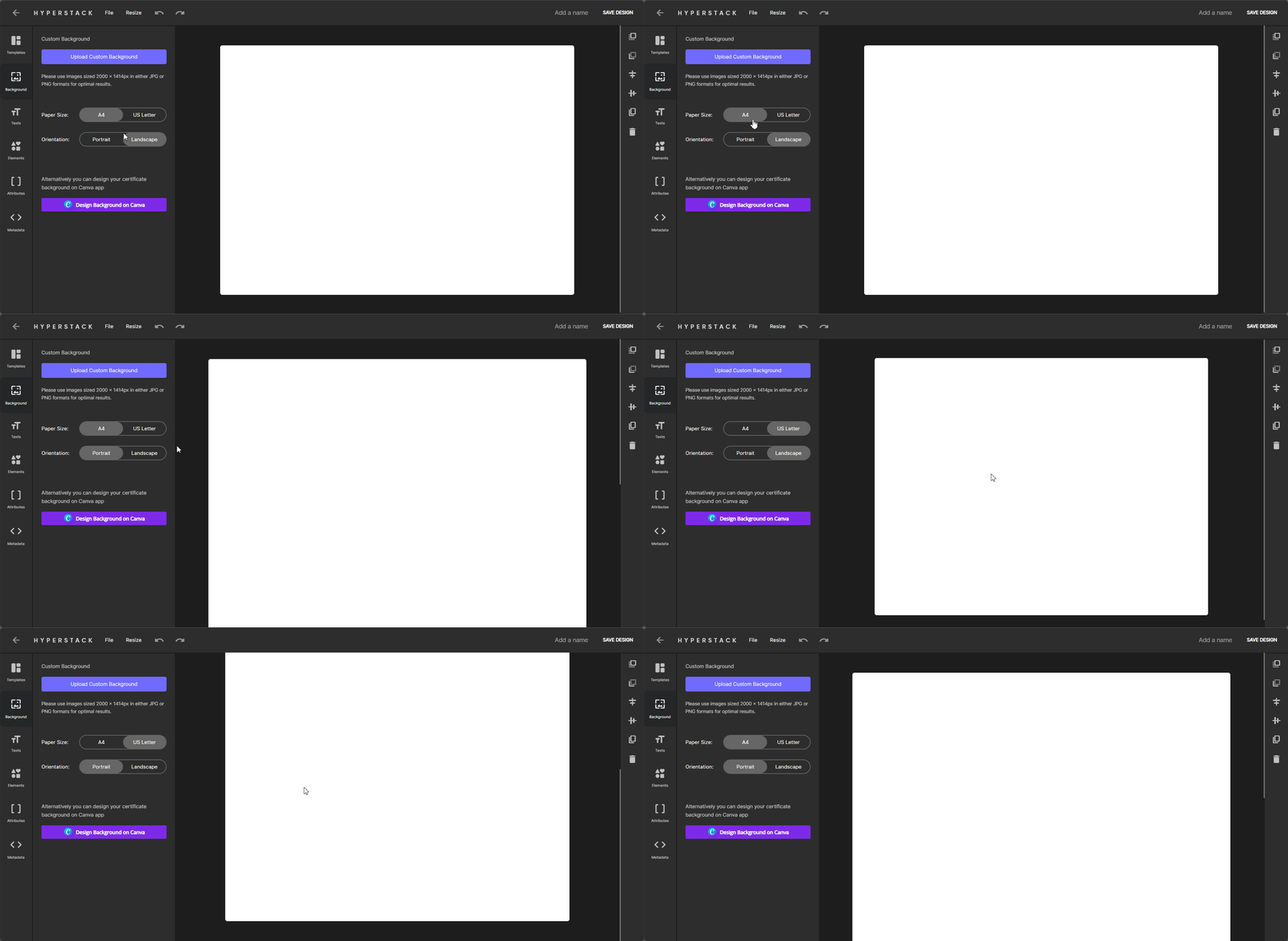
Switching Page Size:
You can switch between portrait mode and landscape mode for designing certificate in the background section.
#
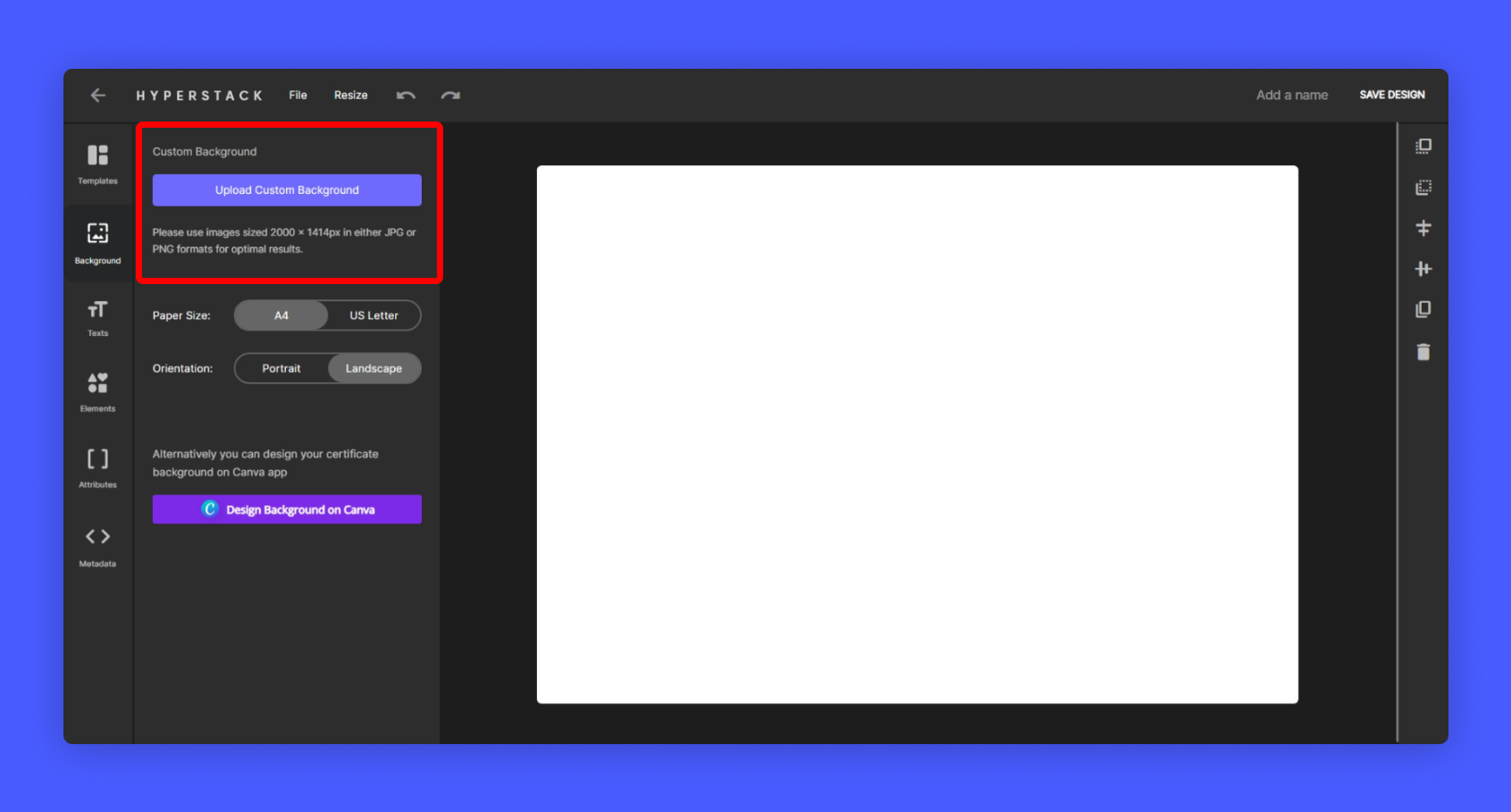
To Upload your Certificate Background:
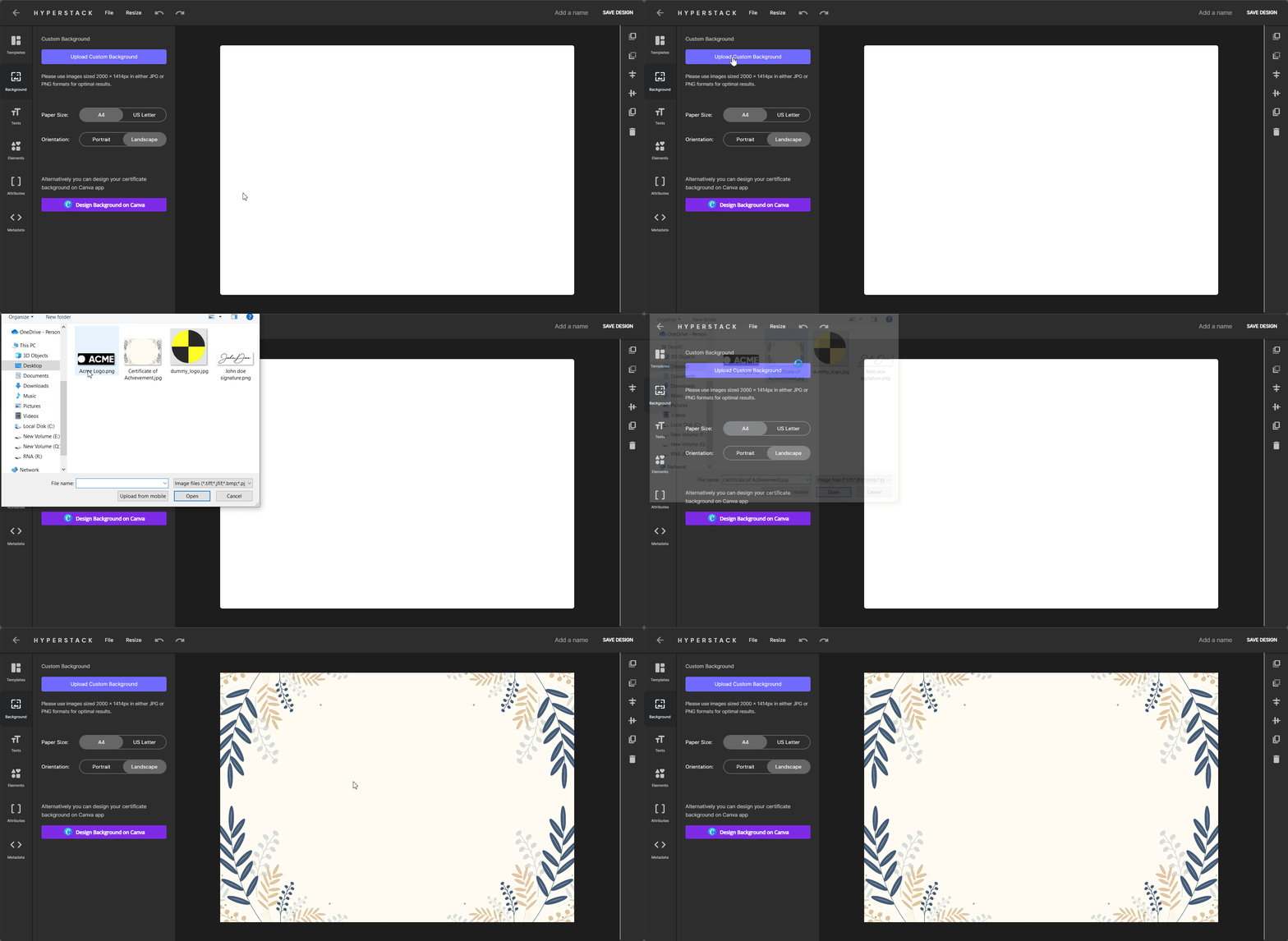
Go to Background section and click Upload Custom Background button to upload your certificate background image.
#
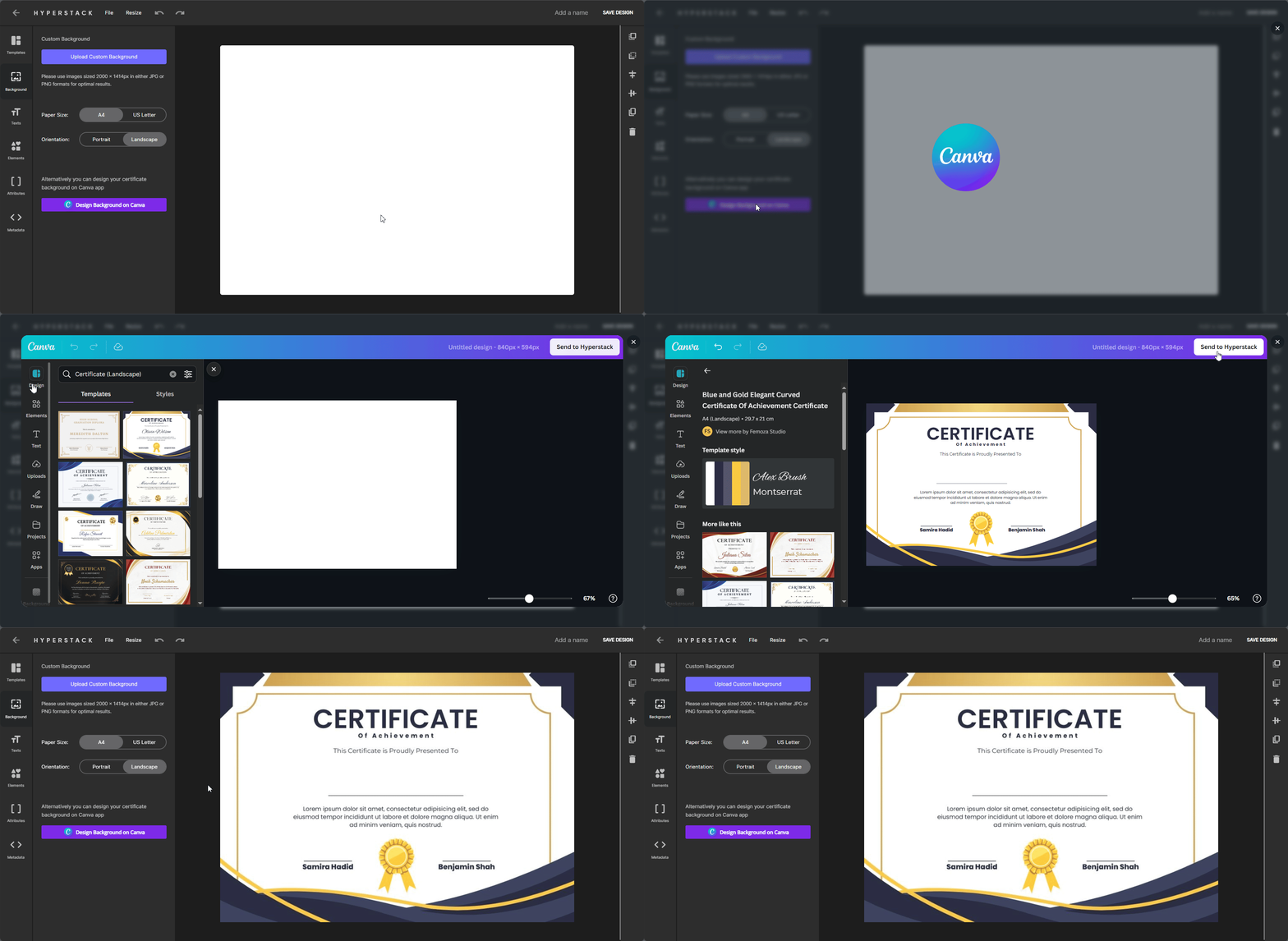
Alternatively you can design your certificate via Canva:
There is an easy way to design via Canva, click Design Background on Canva button to design
Note: Make sure to remove the name and other text fields which will be dynamically replaced from the background image, as you will be adding them later.
#
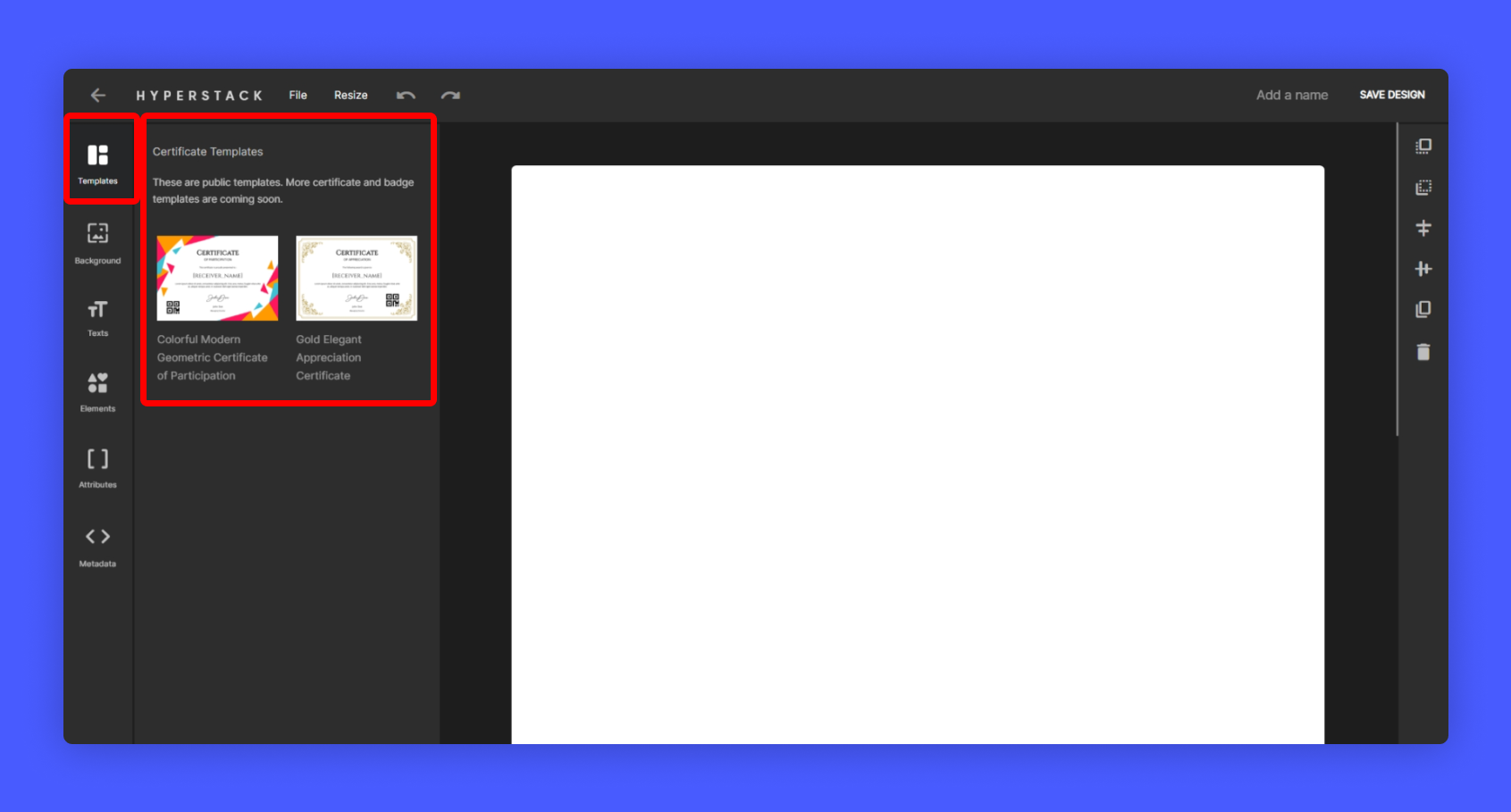
Prebuilt Templates from Hyperstack:
For prebuilt templates, Select Templates and choose from varieties of ready made templates
#
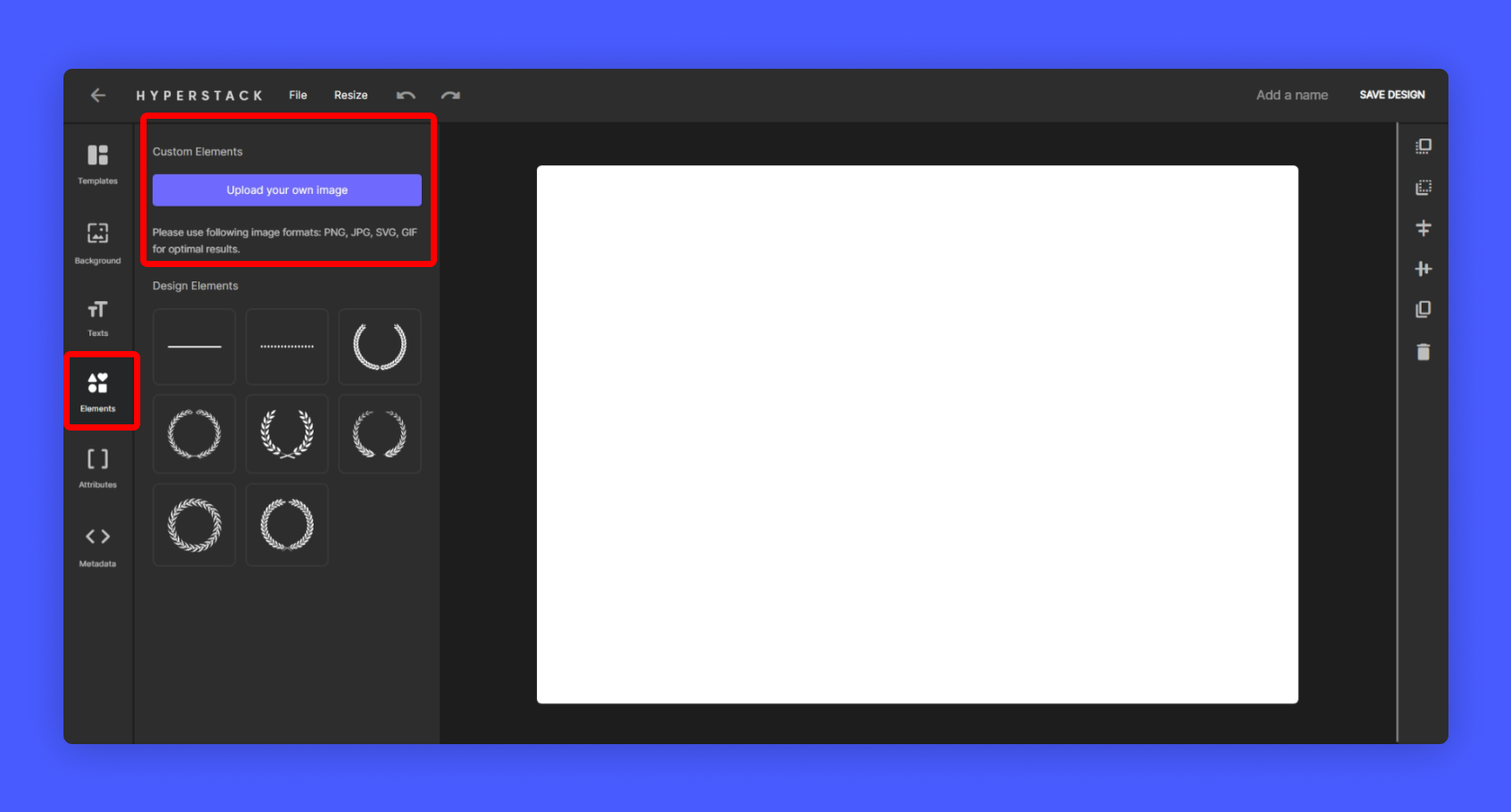
Adding Logos, Signature and Images:
You can add Logos, Signature and Images to your certificate by clicking on the Elements section and Click Upload Custom Image button to upload your images/logos/Signatures to the certificate.
#
Adding texts to your certificate:
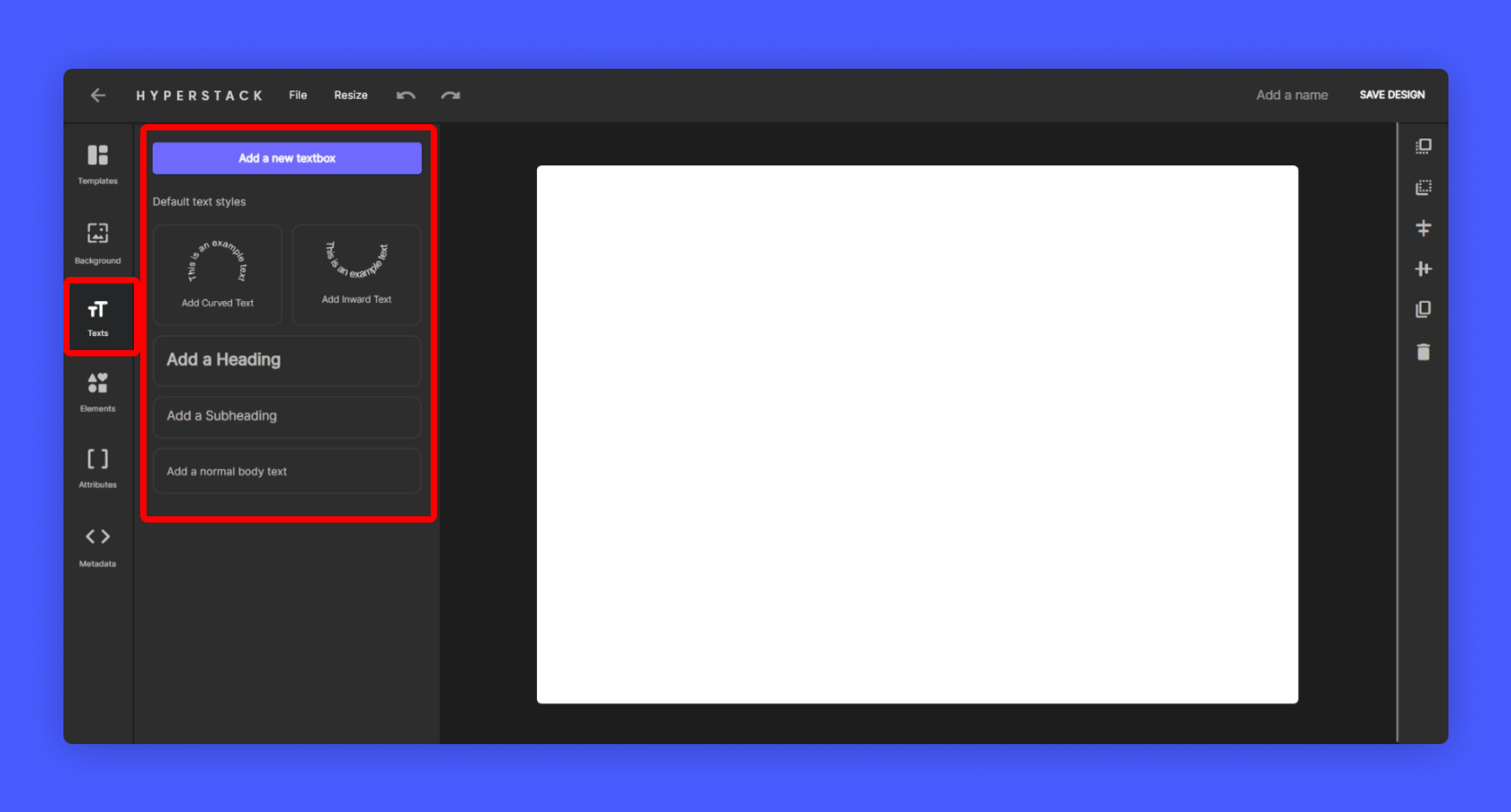
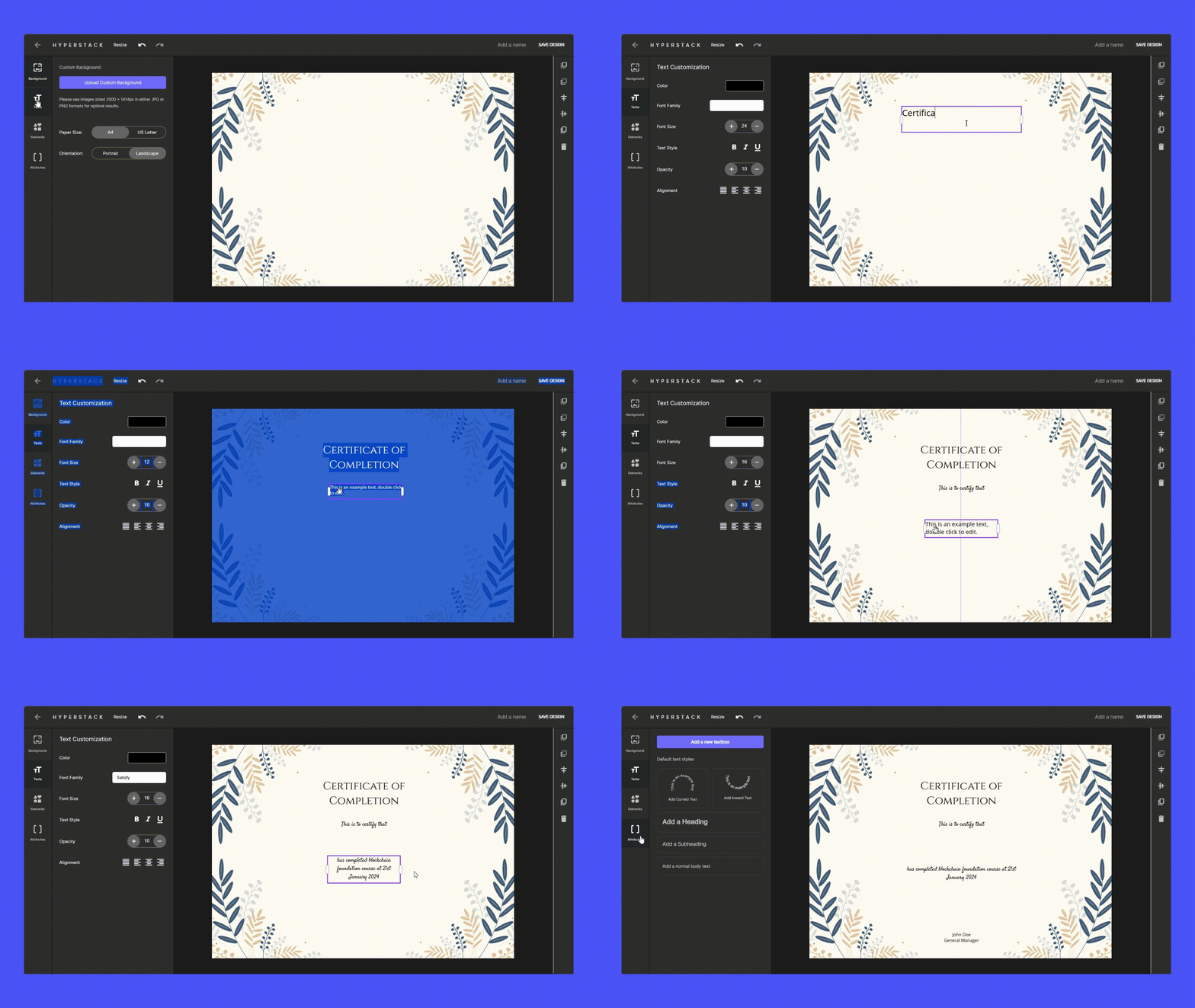
You can add Texts to your certificate by clicking on the Texts section and Select the desired text format you wish to add in your certificate.
#
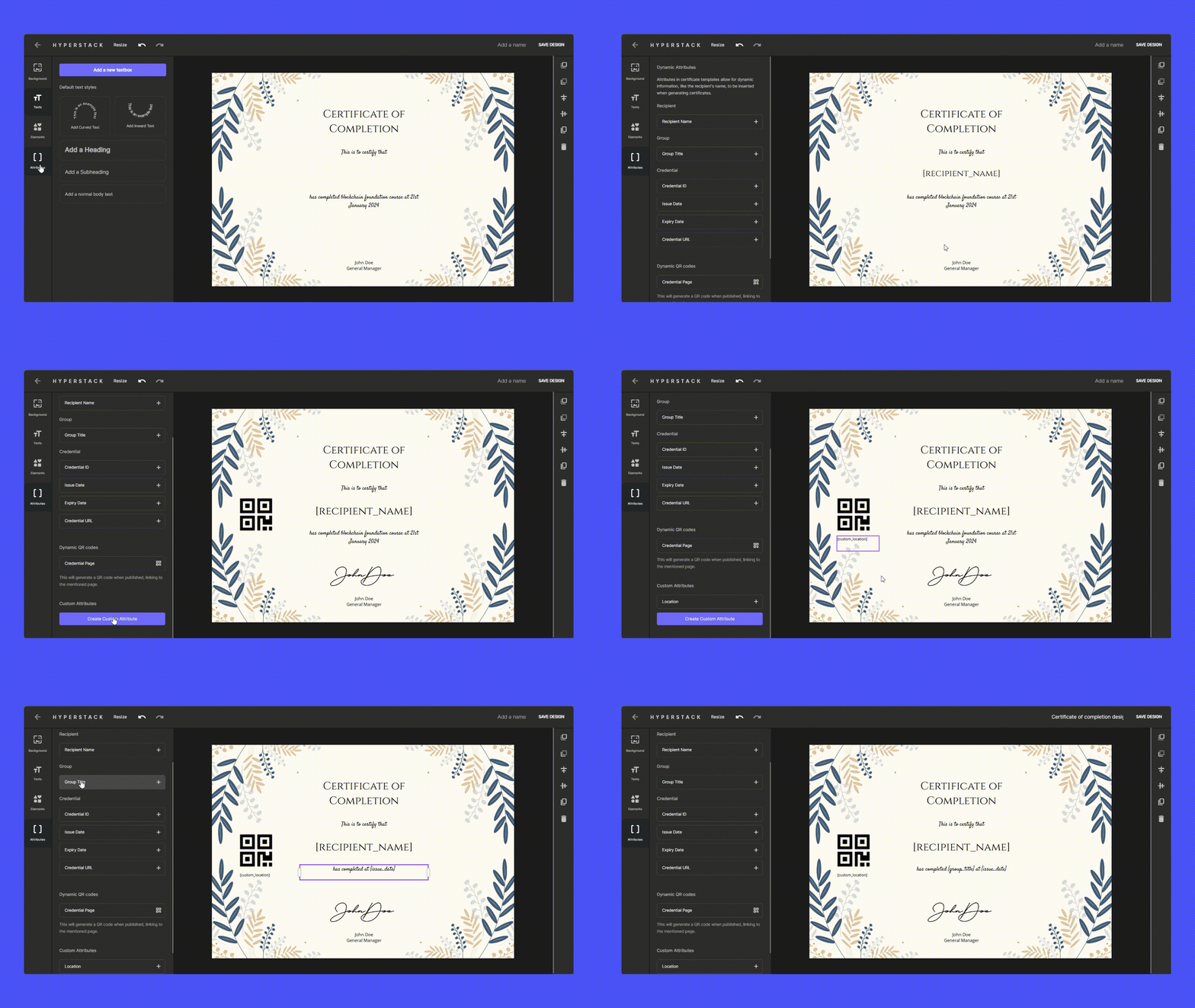
Adding Dynamic Text Fields:
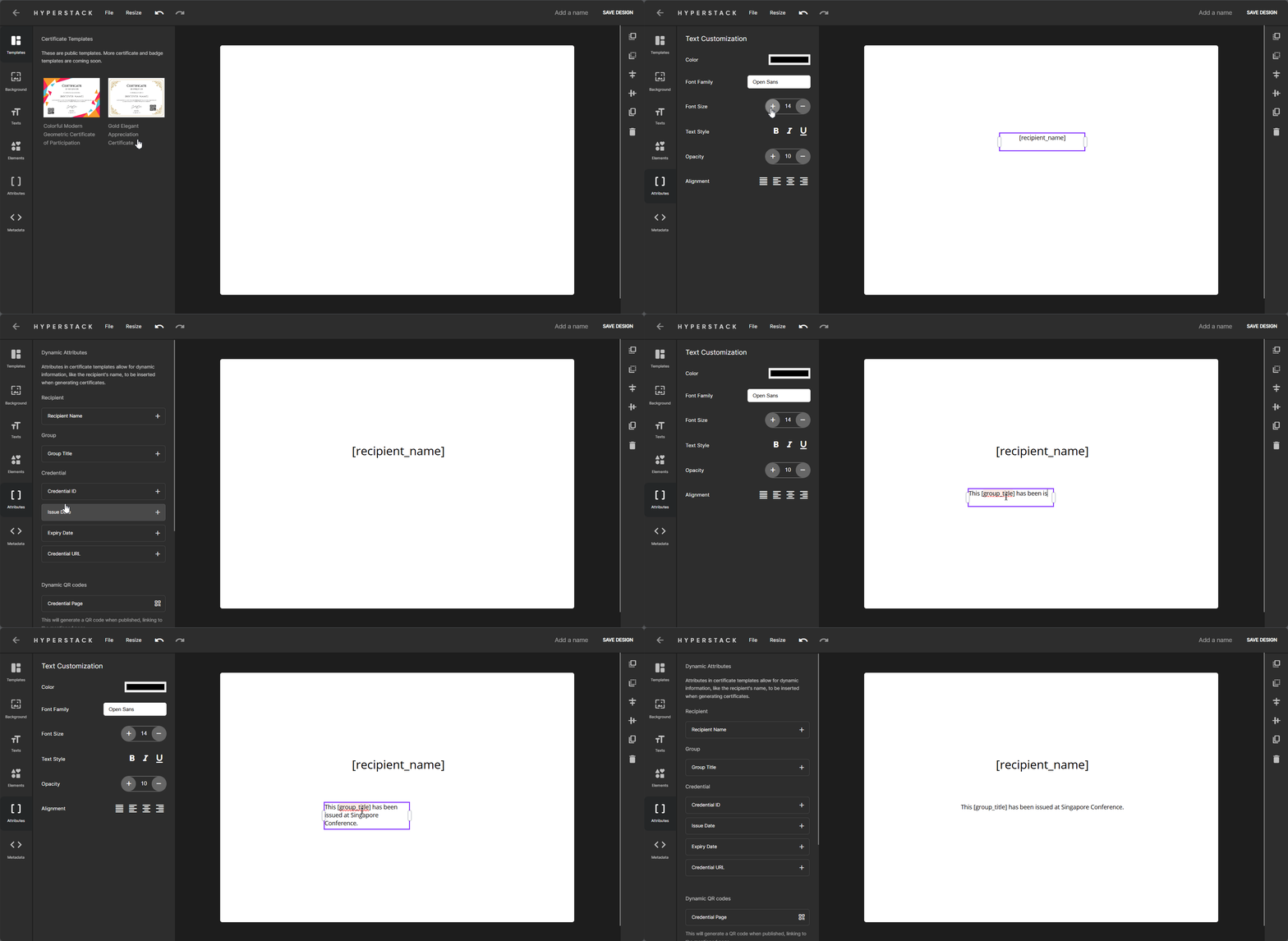
Finally Custom Tags, most important feature in Design studio, Custom tags lets you dynamically replace tags with names, title, date which you will be uploading via spreadsheet later.
#
Adding Dynamic QR Code:
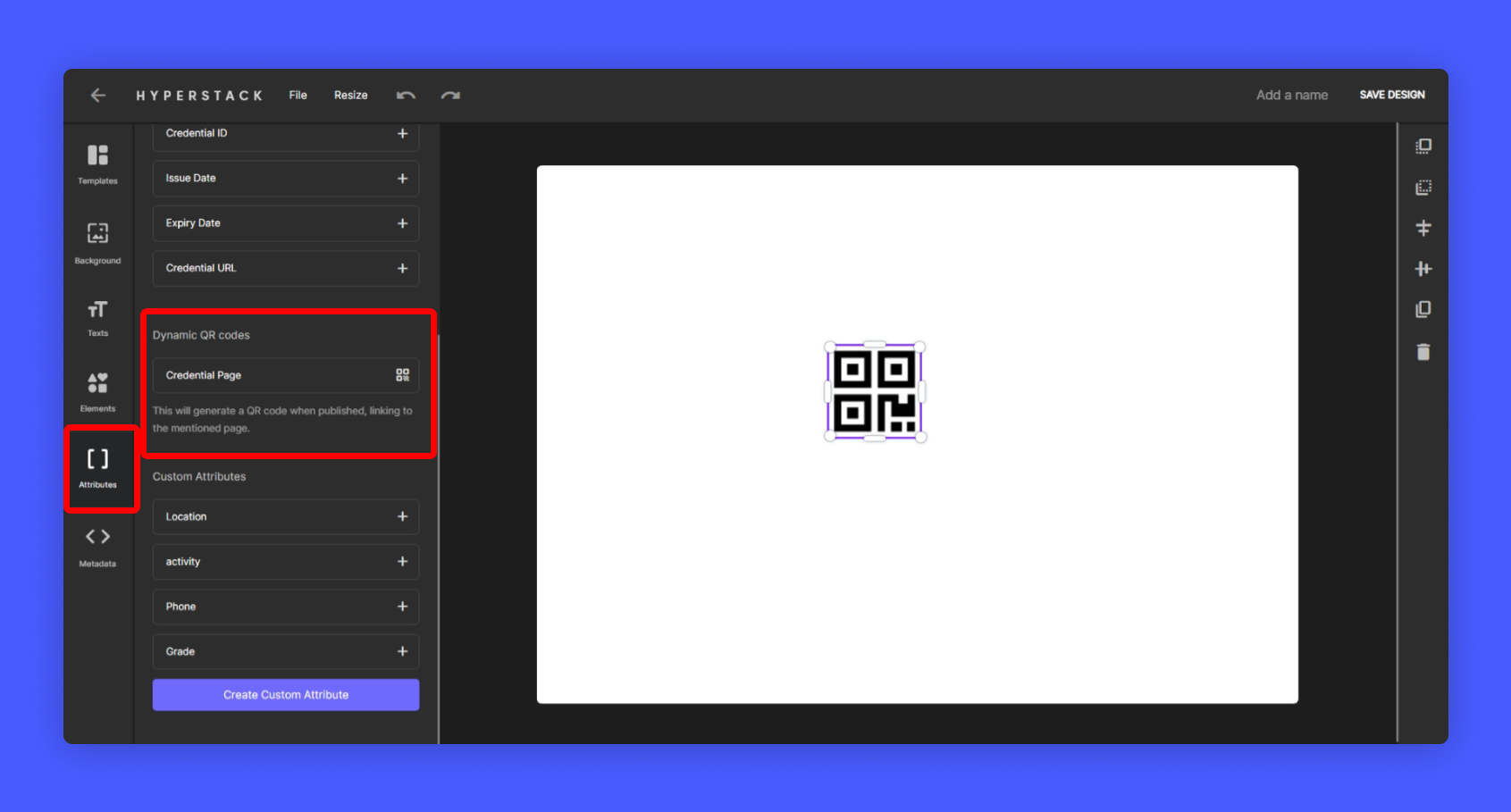
You can add QR Code to your certificate by clicking on the Elements section and Click QR Code button to add QR code to your certificate.
The QR code can be automatically linked to the certificate URL on issuance of the certificate.
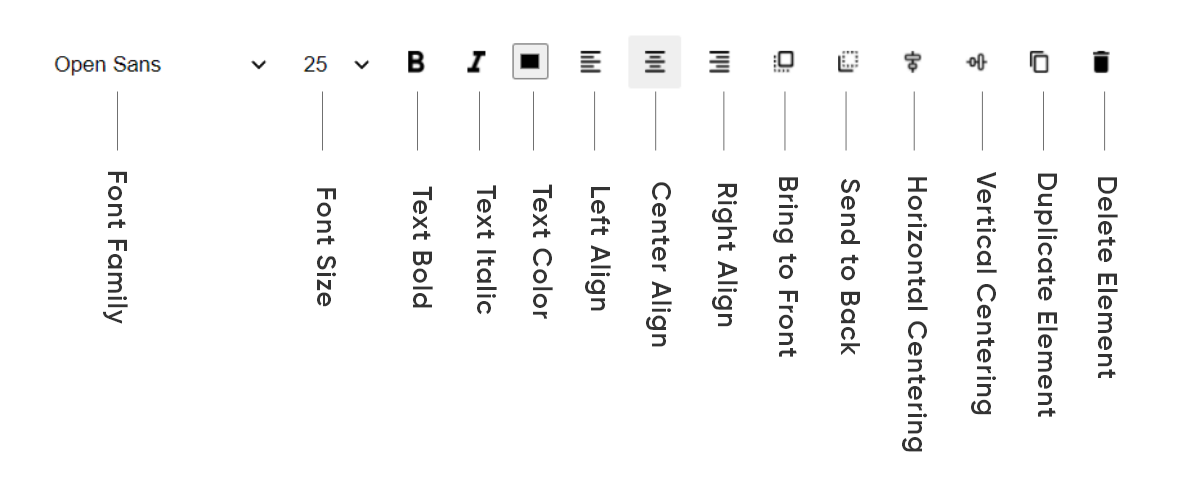
Some important editing tool names for your knowledge
#
Let's get started to designing a certificate:
Step 1: Add Background Image for your certificate
Step 2: Add necessary Text Fields to your certificate
Step 3: Replace text fields that are going to be dynamically change (example: receiver name)