#
9. Social Media Integration
#
To fully enable the one-click LinkedIn add-to-profile feature for your recipients, you will need to include your LinkedIn Org ID in your Hyperstack account.
Hyperstack supports recipients adding their certification to their profile with one click. To reliably link your LinkedIn company page to their certification, giving your business the best exposure, you need to provide your LinkedIn organization's ID.
#
What Does the LinkedIn Org ID Do?
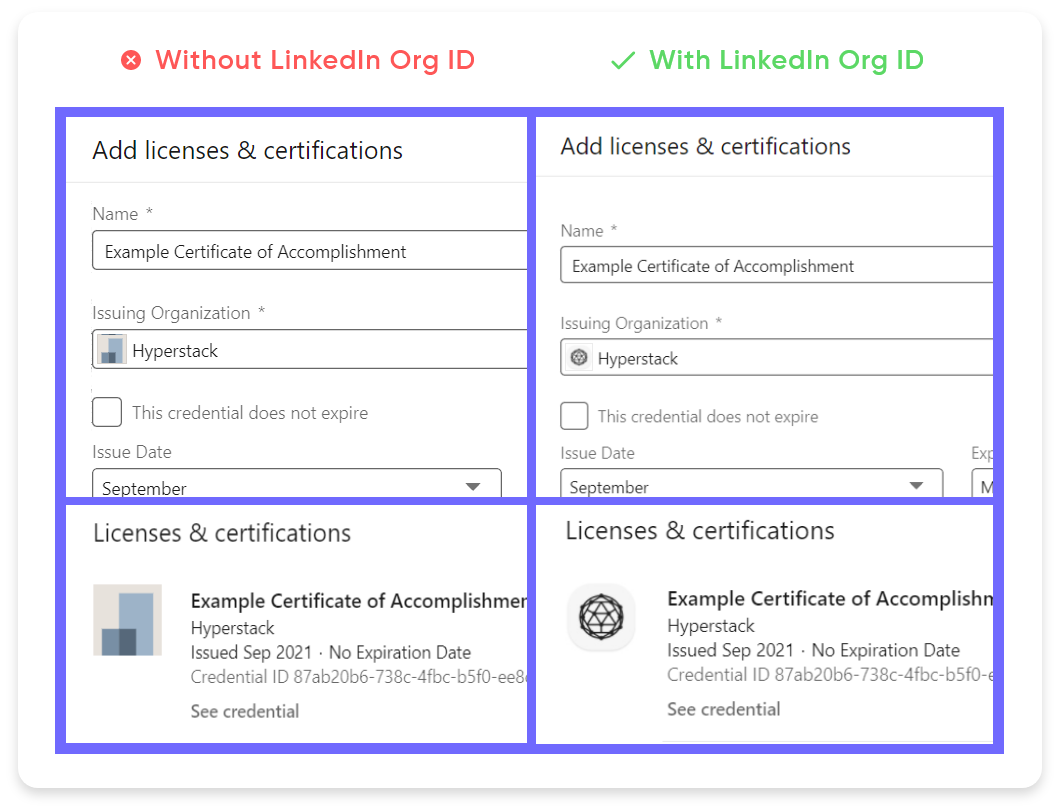
Without your LinkedIn Org ID:
- The One-Click share to profile button on your recipients' credential views will not work.
- The certification added to your recipients' LinkedIn profiles won't have your logo or link to your company page:
#
Where Do I Find My LinkedIn Org ID?
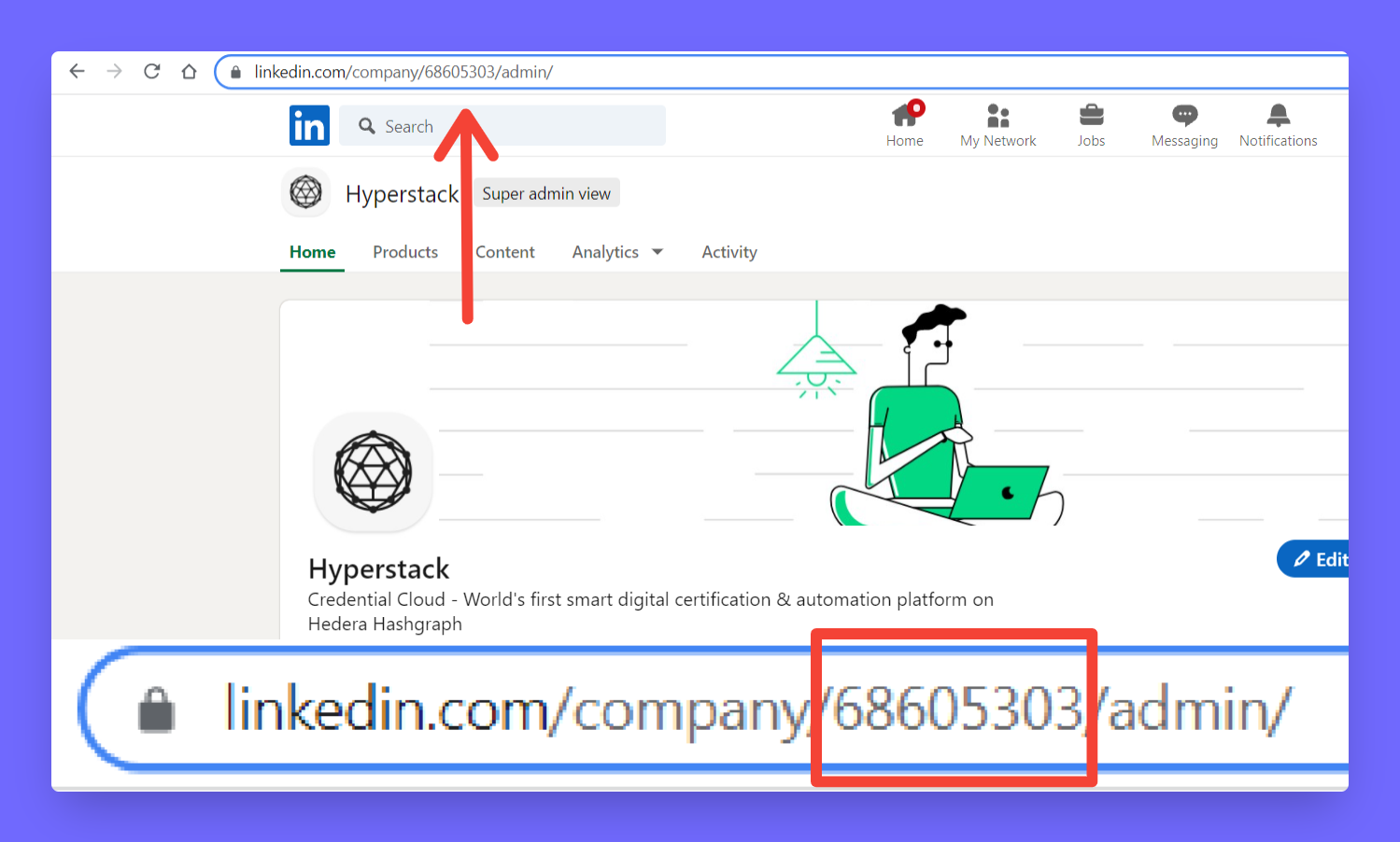
Log in to LinkedIn as the admin for your business' Organisation Page
Check the URL used when you are logged in as the admin
Your LinkedIn Org ID will be the seven-digit number in the URL
In this example, Hyperstack's LinkedIn Org ID is shown:
#
Where Do I Enter the LinkedIn Org ID in Hyperstack?
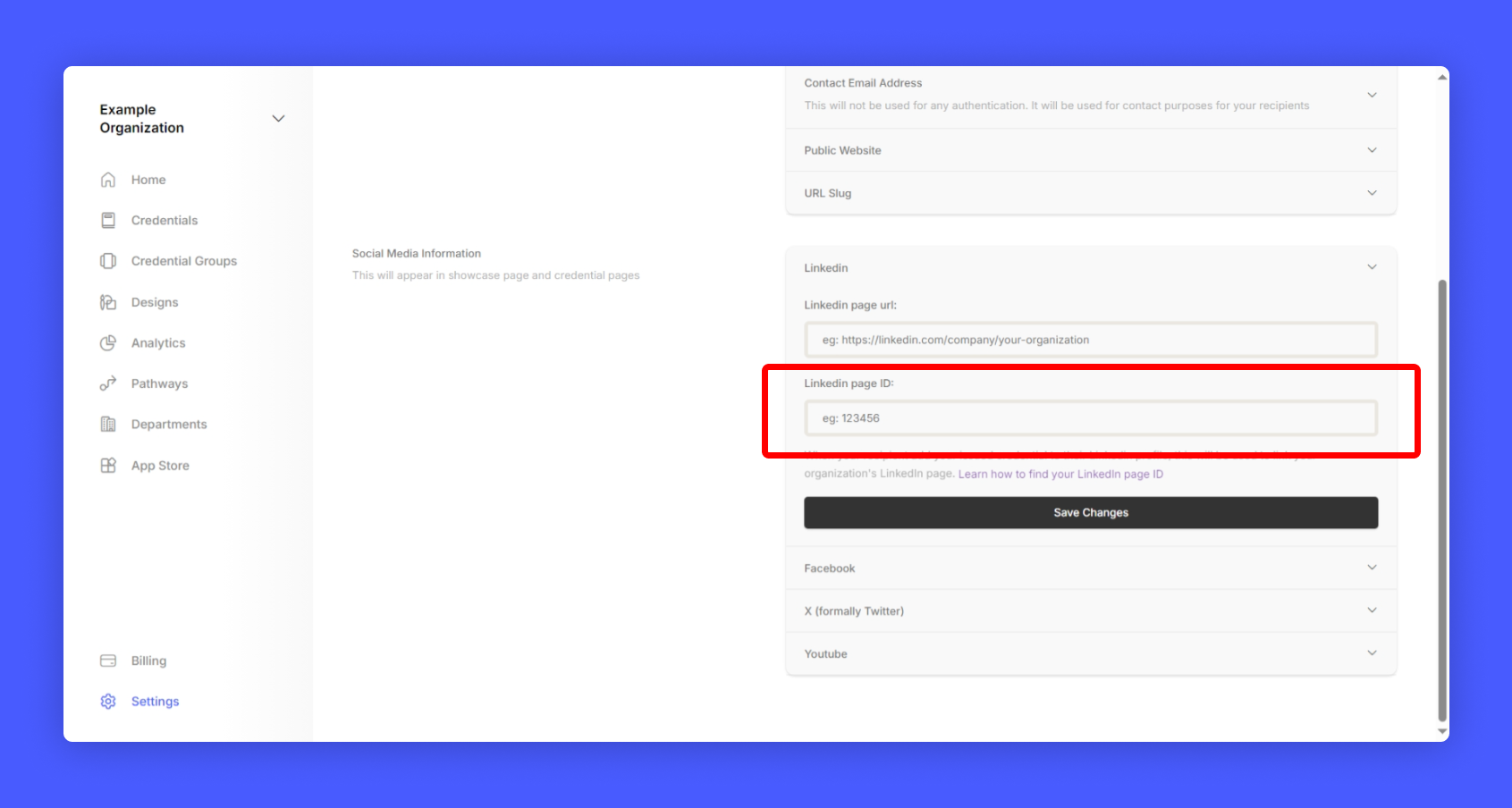
Step 1: Go to Setting > General Settings > Under Social Media Information click Linkedin
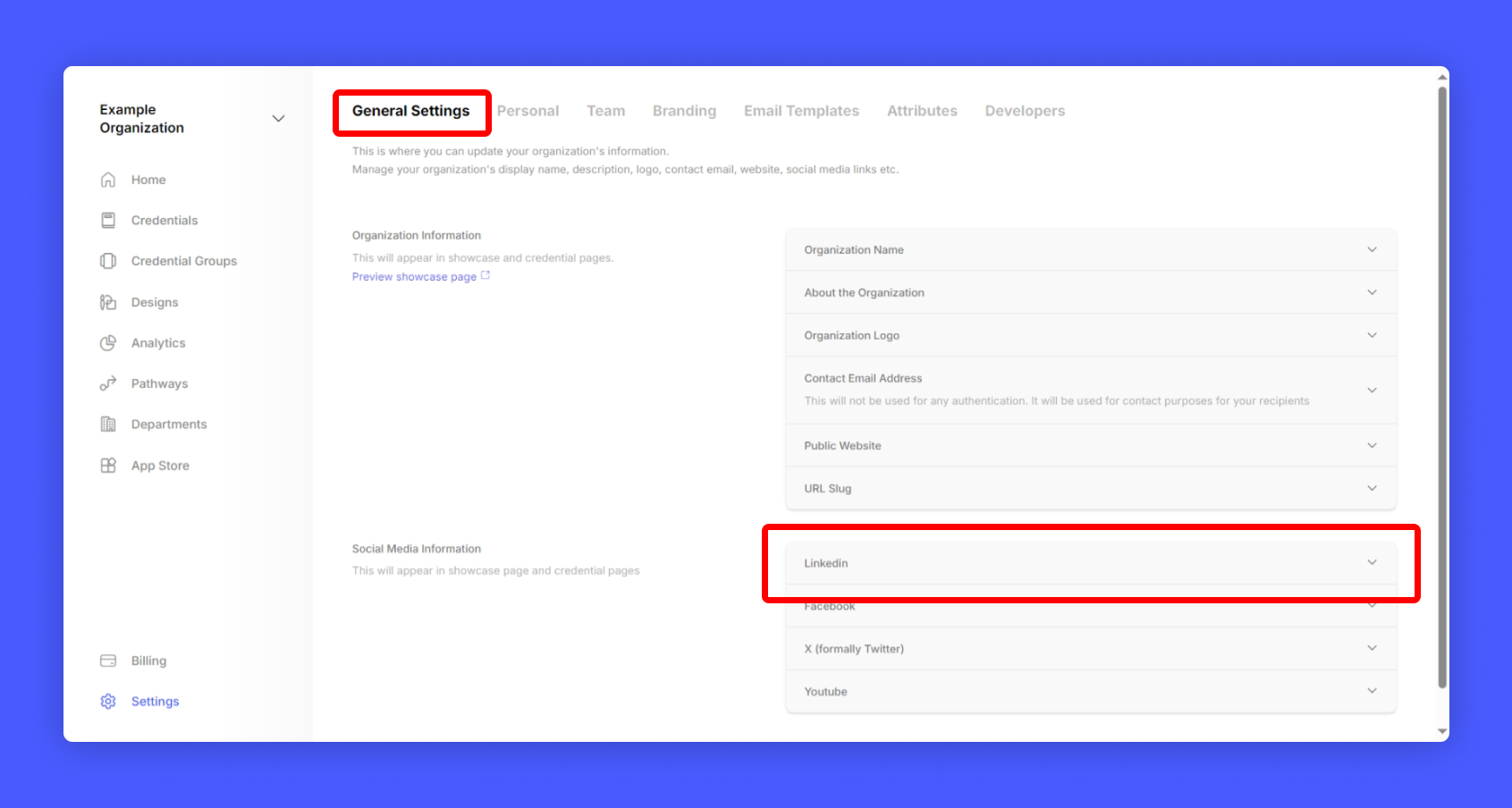
Step 2: Enter your LinkedIn Org ID to enable One-Click Sharing to LinkedIn
#
What Happens Next?
Once you have entered your LinkedIn Org ID, your recipients will be able to add their credentials to their LinkedIn profiles with one click. This will help to promote your business and increase the visibility of your certifications.
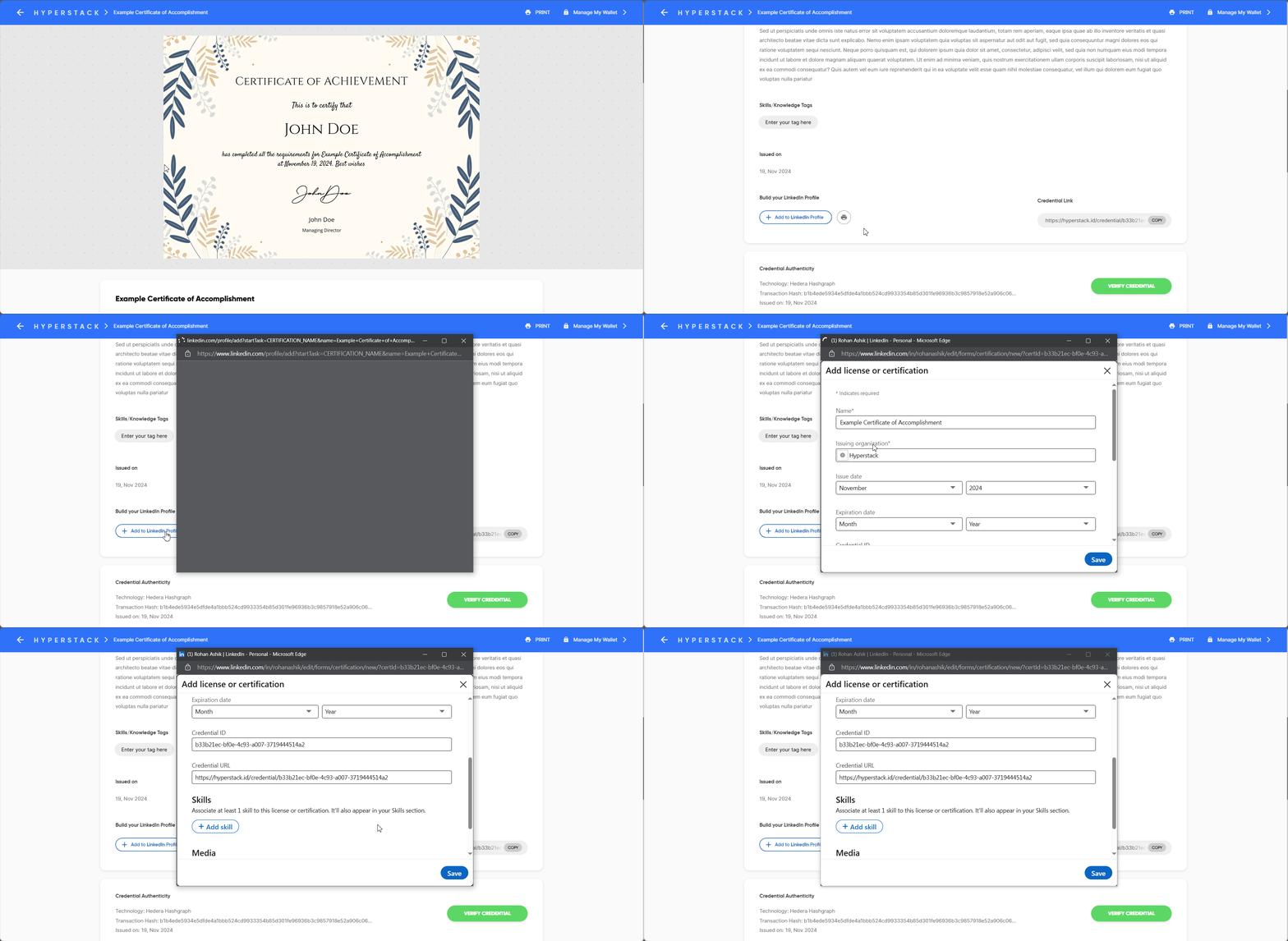
That's it! You're all set up for one-click LinkedIn sharing.